Showing posts with label Android. Show all posts

Tuesday, May 31, 2016

Protractor : How to implement XMLreports in protractor

In the post on how to automate web application using protractor we see that we ran the application and it just print test result at terminal window.

Here we see how we can implement Jasmine reporters. We will use xml reports.

In this post we will use our sample projects that was built in our previous post.

Step 1 : Open the project.

Step 2 :  Open Terminal window and install jasmine-reporters package using the following command.

npm install jasmine-reporters

 image

It installs two packages jasmine-reporters@2.1.1 and  mkdirp@0.3.5.

image

Step 3 : Now open config.js file and write the following script in onPrepare() function,

image

Here,

jasmine.getEnv().addReporter(): It create report after executing the script.

JUnitXmlReporter() : It generate XML report.

consolidateAll : Aggregate all the results. 

savePath: Report folder where report is generated. Use can define his own path.
filePrefix: Generated file name.

Step 4 : Now config.js file will look like the following,

image

Step 5 : Now open terminal window and run selenium server.

 image

Step 6 : Open another terminal window and run the script.

image

Step 7 : Note that script executes and report file is created at ‘testreport’ folder.

image

Now double click  to open the XML report and see the result. You can also open it through a browser.

image

That’s all for now.

In the next post we will see how we can generate HTML report.

Happy end to end testing using Protractor!!!

Wednesday, April 22, 2015

Robotium : How to automate an Android Application using Record and playback approach

In our last post we see how to install Robotium on our Eclipse IDE. In this post we will explain on how to record an android application and playback the script.

Step 1 : Open Eclipse IDE. Before started recording we need to run the Android virtual device. Click on the Android Virtual device icon.

image

AVD manager window is displayed and start a device that is already configured. How to configure a Virtual device will be posted later in separate post. Select a device and click on Start button.

image

Launch Options window is displayed and click on Launch button.

image

Virtual device will start for Launching.

image

image

Now minimize the virtual device window, close AVD window and proceed for Robotium recording.

Step 2 : Go to File > New > Other

image

Step 3 : Click on Android – Robotium Recorder from New Window. Select New Robotium Test.

Step 4 : Click on Next button.

image 

Step 5 : A pop up dialog is displayed with the message “Please Select the root Java JDK folder”. This message is only displayed if JDK folder is not defined and configured. Click on OK button.

image

Step 6 : Java JDK window is displayed. Locate the JDK folder on the machine. Click Ok button.

image

Step 7 : Robotium Recorder window is displayed and select the apk file. In our case we have downloaded android calculator apk file from this location. Select the apk file and enter the project name. Click on Next button.

image

Step 8 : Click on New Robotium Test button.

image 

Step 9 : Recording Started. Wait for the application starts at Virtual device.

image

image

Step 10 : Go to Virtual device window and note that application will start on that window.

Step 11 : Enter 4 at First text box

Step 12 : Click on the second text box and enter 5 at second text box

Step 13 : Click on Multiply button.

Step 14 : Result will be displayed at Result text box.

Step 15 : In order to verify the result click on the Result text box. It will create an assert script.

image 

Step 16 : Note that steps are written at plain text and click on Stop recording button.

image

A window may appear and click on OK button.

image 

Step 17 : Click on Save button

image

Step 18 : A window is displayed to ask for Test Case name. Enter Test Case name as “Multiplication” and click on OK button.

image

Step 19 : Click on Finish button.

image

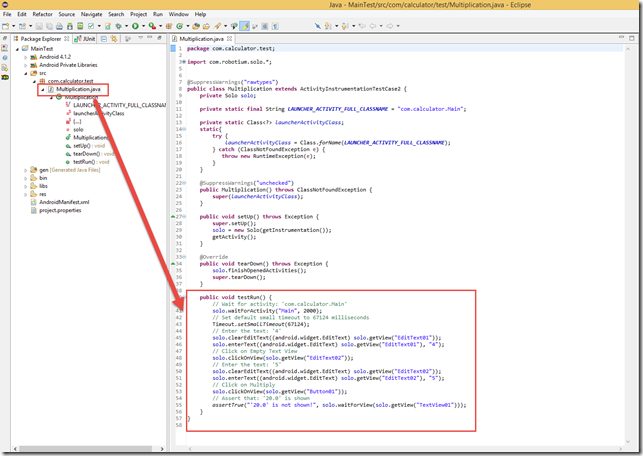
Step 20 : Code will be generated for this script at Eclipse editor. Expand the project of the package explorer window.

image

Step 21 : Double click on the class name “Multiplication.java”. We see the step by step script on the code. We will explain about code on future post.
image 

Step 22 : Now Run the script. Right click on the Script name and click Run as > Android JUnit test.

image

Step 23 : Go to Virtual device window and inspect that script will run and execute test.

image image

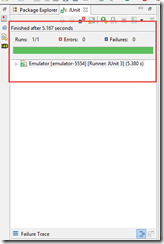
Step 24 : Result is displayed at JUnit Editor.
image

That’s all for now. Our next Robotium related post, we will show on how to refactor the Robotium script and write more manageable test.

Happy Automation day with Robotium …!!!

Sunday, April 19, 2015

Robotium: How to install Robotium in eclipse IDE

Robotium is an interesting tool to automate the Android application. It is an android test automation framework that can record both native and hybrid android application. It is easy to write a powerful and robust automated UI test for Android application using Robotium.

Here we will explain on how to install Robotium in our Eclipse IDE.

Step 1 : Open Eclipse IDE Editor. Note that we should have installed Java JDK and Android SDK in our machine. We should have ADT(Android Development Tools) plug in installed on our Eclipse IDE.

Step 2 : Go to Help>Install New Software

image

Step 3 : Enter the link “http://recorder.robotium.com/updates” to the “Work with” text box of Install window.

image

Step 4 : Press Enter button. Robotium is displayed at the list. Now click on “Robotium” to expand and click “Select All” button. Uncheck “Contact all update sites during install to find required software”.

 image

Step 5 : Click Next button.

image

Step 6 : Click on Next button again.

image

Step 7 : Click on “I accept the terms of the License agreement” and click on “Finish” button.

image

Step 8 : Robotium starts installing.

image

Step 9 : A security warning dialog is displayed and click on OK button.

image

Step 10 : Software update dialog is displayed to ask restarting eclipse and click on “Yes” button.

image

Step 11 : Eclipse will be restarted and Select the workspace and click OK button.

image

Step 12 : Installation of Eclipse is complete. To verify the installation click on File > New > Other…

image

Step 13 : New window is displayed with other project list. Here “Android Robotium Recorder” is displayed and click on this folder we see “New Robotium Test” project. It means that Robotium for eclipse is installed successfully.

image

That’s all for now. In our next post we see on how to record an android application and run it using Robotium.

Happy Automation day with Robotium …!!!

Cypress: How to handle browser-based authentication pop up dialog in Cypress

Five years ago I have written a blog on how to handle browser-based authentication for selenium webdriver.   Now it is for cypress. Cypress...