Showing posts with label Selenium WebDriver. Show all posts

Monday, September 28, 2020

Cypress: How to handle browser-based authentication pop up dialog in Cypress

Five years ago I have written a blog on how to handle browser-based authentication for selenium webdriver.


Now it is for cypress.


Cypress has come with a very easy solution.


A very simple syntax to handle the browser-based authentication,

If we have a username and password and the URL then the cypress command will be 


cy.visit(app_URL, {auth:{username:appUserName, password: appPassword}})


For example, we have

username : abc

password : abc123

URL : xyz.com


Then cypress command will be


cy.visit('https://www.xyz.com', {

auth: {

        username: abc,

        password: abc123

      }

})


There is an alternative way that cypress suggested,


cy.visit(http://username:password@domainName.com)


Note that we have a special character colon “:” between username and password.


For the above example,


Cypress command will be,


cy.visit('https://abc:abc123@www.xyz.com')


That’s all for now. We will discuss more on cypress in my future post.

Thank you. 

Happy automation testing with Cypress!

Sunday, April 24, 2016

Protractor : How to run protractor script in different browsers

In our last post we have seen on how we can start our selenium standalone server using gulp. In order to perform cross browser testing it is needed to run our protractor script in different browser. Here we will see how we can do that by running our protractor script in different browser.

Protractor support four major browsers (Chrome, Firefox, IE and Safari).

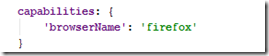
If we use conf.js file to run our protractor script then we need to add Selenium capabilities object to our conf.js file.
image

Here capabilities is a json object to add browser name. Note that we have to change the browser name here to run our protractor script to our desired browser. If we use ‘chrome’ in place of ‘firefox’ then it starts running our script in chrome browser. Same for ‘safari’  and ‘internet explorer’. We can use two other keys with ‘version’ and ‘platform’.

Example : We use our previous project that we have developed in our previous post. Here we modify the conf.js file

Step 1 : Open the project and open conf.js file.

Step 2 : Add the following code for firefox browser. Note that chrome browser is by default for protractor. So we don’t need to mention it. If we implement firefox browser, we can add the following code in our conf.js file.

image

Now conf.js file looks like the following,

image

Step 3 : Now run the script by using the following command,

image

Note that we have to run Selenium standalone server before that.

When it starts running, opens the firefox browser and execute the steps.

If we want to run our scripts in multiple browsers at a time then we use multicapabilities object. For this we add the following code.

image

Now the conf.js file will be,

image

Now run the script. We see two browser window opens and execute the script. Note that we must have chrome and firefox installed on our machine.

In case of internet explorer, things are different.

Step 1 : Open the terminal and type the following to install IE driver

image

Step 2 : Add multicapabilities object to conf.js file like the following where browser name is ‘internet explorer’.

image

Step 3 : Run selenium standalone server.

[image71.png]

Step 4 : Now run the script by using the following command,

image

We see IE browser window opens and execute the script.

In our next posts we will show how we can manage it other ways.

Happy UI Testing with Protractor!!!

Thursday, March 31, 2016

Protractor : How to start selenium server using gulp

In our previous post we see how we can run multiple javascript file. There we have started our selenium server by typing the following command at the terminal and pressing enter button. Every time we have to run it manually when executing our protractor script.

[image71.png]

Gulp can handle the problem and it can run automatically when our protractor scripts start executing.

We have to add the following code in our gulpfile.js file.

Step 1 : At first add two variables like the following,

image

First one is for updating webdriver and second one is for starting Selenium server.

Step 2 : Now add this two task like the following,

image

Step 3 : Now modify default gulp.task() method.

image

Note that we have added two variables ‘webdriver_update’ and ‘webdriver_standalone’ as gulp.task() argument so that it runs first and then run the default task that means protractor script.

Step 4 : Now gulpfile.js file looks like the following,

image

Step 5 : Now run the protractor script using only gulp command and do not need to run selenium standalone server using manual command.

image

It first update selenium webdriver and then start the selenium standalone server. After that it starts executing protractor script.

image

That’s all from here. We will discuss more on gulp and protractor in future.

Happy UI Testing with Protractor!!!

Thursday, December 31, 2015

Protractor : How to automate AngularJS application using protractor

In my last post I have discussed about protractor and how to setup Protractor environment to run protractor test script. Here I will show you how to write protractor test script and run it using WebStorm editor.

Sample application : Note that we use Super calculator as sample AngularJS application. URL :http://juliemr.github.io/protractor-demo/

image

Test Cases : Verify that the application can add two numbers.

  1. Open the application.
  2. Enter First number.
  3. Select operator (+,-,*…)
  4. Enter Second number.
  5. Click on Go button
  6. Verify the result.

Step 1 : Create a Protractor Test project

  • Open Webstorm IDE. Note that WebStorm can be downloaded from JetBrain’s site. You can use any other IDE to develop protractor scripts that supports JavaScript.
  • Welcome to WebStorm window is displayed and click on “Create New Project” link.

image

  • Select the project type as “Empty Project” and path. In my case path is “C:\Development\ProtractorTest”.

image

  • Click on Create button.

image

  • Right click on Folder name “ProtratorTest” Folder and click on JavaScript File.

image

  • New JavaScript File window is displayed and enter the file name “test” and click on OK button.

image

  • Now project is ready to write test script. test.js is the file to write test.

image


Step 2 : Write test script using JavaScript

  • Write the following Script to open the application in test.js file.

image

Here describe and it comes from Jasmine framework. We will discuss it on future.

Common syntax of describe is,

describe(feature name, function(){

………

…….});

Common syntax for it is,

it(test case title, function(){

………….

….});

In order to write a test, syntax will be,

describe(feature name, function(){

      it(test case title, function(){…..

       …….

                 });

});

browser.get(url) is a protractor command to browse an application using a url given as argument.

  • Now write the following code to enter first number.

image

Here element() is used to find an element and by.model() is a new locator in Protractor. Protractor uses some special locator to find out angularJS element beside selenium webdriver. We will discuss more on this in a separate post.

sendKeys() is a function to enter value/string to text box.

  • Now select an operator. In this case it will be addition (+).

image

  • Now write the following code to enter second number.

image

  • Click on Go button.

image

  • Verify the result.

image

Note that we use expect(……).toEqual(…) to verify the result.

Common syntax,

expect(actual value).toEqual(expected value);

  • Now script of test.js file looks like the following,

image


Step 3 : Run Protractor Test

  • Add a new JavaScript file named “conf.js” at the same directory. Note that conf.js is the file name only known by protractor at run time.

image

  • Open conf.js file and write the following code.

image

Here, framework is the framework name. We use jasmine framework here.

seleniumAddress is the selenium server address running on the machine.

In my case  'http://127.0.0.1:4444/wd/hub'
We may write  'http://localhost:4444/wd/hub' is place of ip address.

specs is the JavaScript file name where scripts are written using protractor. In my case it is test.js.

  • Now open a terminal window by clicking on Terminal tab.

image

  • Terminal window look like this,

image

  • At First we have to start our selenium server. Write the following command and press enter key.

image

  • Selenium sever starts.

image

  • Now open another terminal window by clicking (+) button

image 

  • Write the following command and press enter key.

image

  • Scripts starts running and it opens the application and execute the steps.
  • It shows the results in terminal window.

image

Note that we can use command prompt in place of Terminal window to run protractor script. Same command will be used and in that case we need to change the directory where test.js and conf.js file is located.

In our future post we will discuss more on protractor.

Happy UI Testing with Protractor!!!

Friday, November 20, 2015

Protractor : How to install protractor environment?

Protractor is a end to end test framework for automating AngularJS application that has special angular element locating feature and it can automatically control the waiting time between two steps which selenium needs to handle using different implicit and explicit wait technique.
In our previous post we have discussed about Protractor and its features. Now how we can install protractor in our windows machine will be discussed here.

Prerequisites :
Node.js : Protractor is a Node.js program. So we need to install Node.js before installing protractor.
Jasmine : Protractor uses Jasmine Framework by default. It is not needed to install Jasmine separately.
Java Development Kit (JDK) : For running selenium Standalone server it is needed to install JDK.

Step 1 : Install JDK
How to install JDK is found in my another post. Also you can visit to Java download page to download and install JDK. You can also take help from this link to install JDK

Step 2 : Install Node.js application
Node.js is a JavaScript runtime built on Chrome's V8 JavaScript engine. It is lightweight and efficient.
image
  • Double click on the installer file. In my case it is “node-v5.0.0-x86.msi”. A pop up window is displayed.
  • Click on Run button.
image
  • Node.js setup window is displayed. Click on Next button.
image
  • Check on the checkbox named “I accept the terms in the License agreement”. Click on Next button.
image
  • Keep the destination path same in this window and click on Next button.
image
  • Click on Next button.
image
  • Click on Install button.
image
  • A pop up window is displayed and click on Yes button.
image
  • Installation starts.
image
  • Click on Finish button.
image
  • Node.js installation is now complete.
  • In order to verify that node.js is installed properly, open command prompt window by writing “cmd” text in the run text box and press Enter key from Keyboard.
image
  • Command prompt window is displayed and type the following command.

node –version

 image

  • Inspect that node.js version 5.0.0 is displayed.
image
  • It is proved that node.js is installed properly.
Step 3 : Install Protractor
  • Open Command prompt typing the text “cmd” at run text box and press enter button.
image
  • Command prompt window is displayed.
image
  • Type the following command to install protractor globally. Note that it installs two command line tools – protractor and webdriver-manager. It also installs Protractor API (library).
npm install -g protractor
image

Note that we use “–g” in the command line to install protractor globally.


  • Press Enter key.
  • Protractor starts installing.

image


  • After finishing installation type the following command to verify that protractor has been installed successfully.

protractor --version

image


  • Press Enter key.
  • It shows the protractor version. It means that protractor has been installed successfully.

image


  • Now type the following update command that will install standalone selenium server and ChromeDriver.

webdriver-manager update

image


  • Press  enter key and it starts installing.
  • After finishing installation run the standalone selenium server to verify that it is running. We need to run it before executing protractor test script. The command will be,

webdriver-manager start

image
Now our environment is ready to run protractor test script. So it’s time for writing protractor test. Our next post will be on that topic.

Happy UI Testing with Protractor!!!

Cypress: How to handle browser-based authentication pop up dialog in Cypress

Five years ago I have written a blog on how to handle browser-based authentication for selenium webdriver.   Now it is for cypress. Cypress...