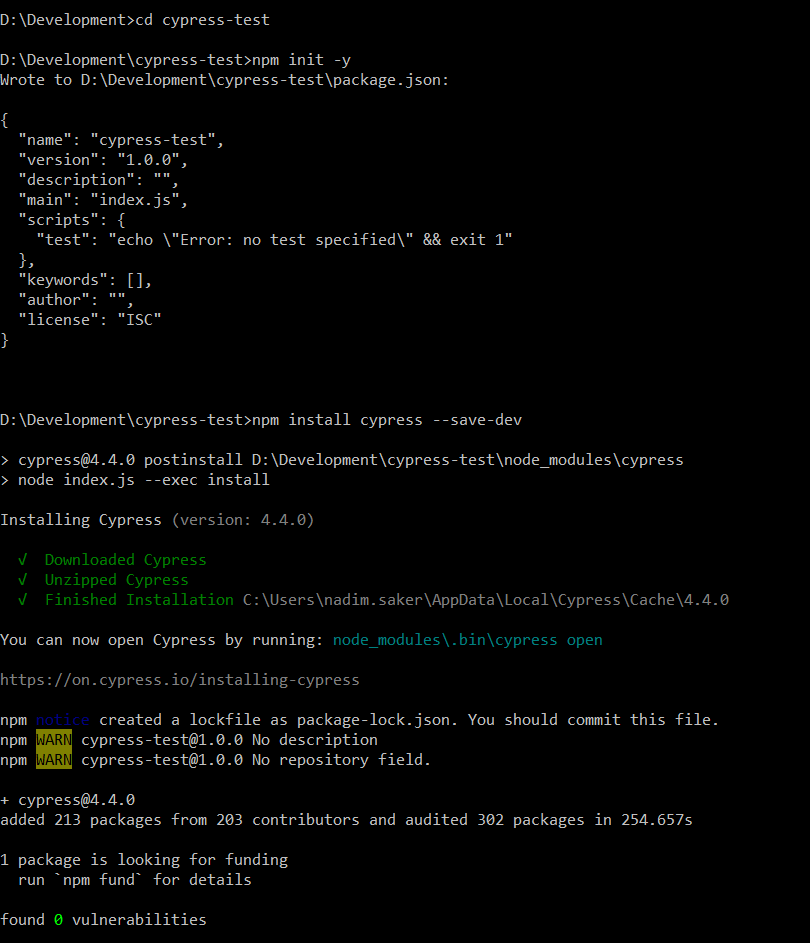
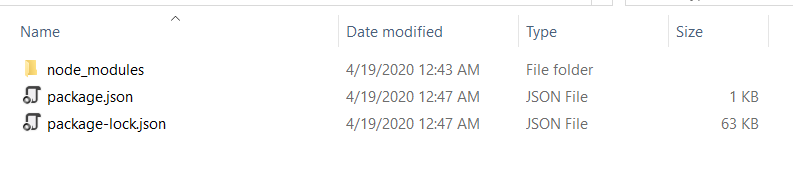
Note that you can install cypress globally or dev dependency.
Sunday, April 19, 2020
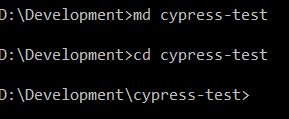
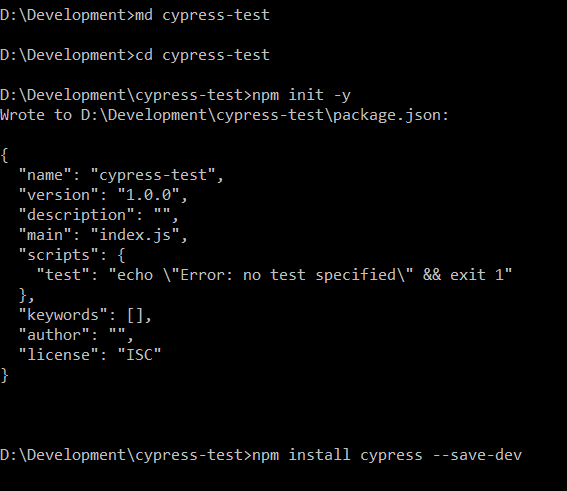
Cypress: How cypress can be installed in our windows machine
Note that you can install cypress globally or dev dependency.
Saturday, April 18, 2020
Cypress: An open-source front end tool for an end to end testing
In that case, Cypress is one step ahead due to its first execution of the test script. Scripts are written in
javascript and no runtime server needed.
- For every step, it takes a screenshot. When you hover it shows a recorded screenshot.
- It can automatically rerun when any changes happen in the script.
- It has spies, stubs, and clocks like unit tests.
- Since it does not use any selenium or web driver, tests result are consistent, reliable and flake-free.
- Debugging is user friendly.
- No waits needed. It can automatically start and stops when needed.
- Network Trafic can be stubbed when needed.
- Screenshot can be taken automatically when scripts fail. Also, video can be recorded for the whole steps.
Saturday, October 6, 2018
Chakram: A Rest API testing framework for JavaScript
Rest API test automation is becoming popular day by day. As Jenkins makes our CI/CD life easier, automation testers are now showing their tendency to automate their rest APIs. When some features changes in an API, they have to test all the related APIs. In microservice arena, number of services are increasing day by day. Postman, Insomnia, SoapUI, Fiddler, JMeter etc. are still a first choice of our testers but I am googling a JavaScript based framework where I can write my test using JavaScript and I got Chakram.
Chakram is an API testing framework that can perform end to end tests on JSON REST endpoints.
Features:
- Chakram can perform a BDD style testing.
- It support JavaScript promises.
- Tests are simple, clear and expressive.
- It is built on node.js, mocha and chai.
- It extends Chai.js, adding HTTP specific assertions.
- It allows simple verification of returned status codes, the compression used, cookies, headers.
- It also returns JSON objects and the schema of the JSON response and response times.
- It uses BDD formatting and hooks so that complex tests can be constructed with the necessary setup and tear down operations.
- It allows new assertions to be added to the framework.
- It supports Plugin and Debugging.
- It exports results in a variety of formats.
That’s all for now. In the next post, I will explain how to write Chakram test and run through command line.
Monday, August 15, 2016
Protractor: How to check npm, node and protractor current version and install the new update
Sometimes we need to know the current version on npm, node and protractor. Since the community is releasing the latest version continuously, we have to install those updated release frequently.
The following commands are needed to check the version and install the latest one. For this we need to open a command prompt and write the following code command.
npm:
- Version
npm -v
- To install the latest version: npm install npm@latest –g
Now check the new version: npm –v
Node:
- Version: node –v
- To install the latest version:
- Just go to Node JS site and install the latest version.
Protractor:
- Version: npm protractor –version
- To install the latest version:
- npm install protractor@latest -g
Thursday, July 14, 2016
Protractor : How to generate single report for test suites
In order to generate aggregate reports we need to use consolidate option.
We will use our Suite projects that was develop through our post on how to implement suites in protractor.
We implement consolidate option on config.js file here.
Step 1 : Open the project and implement protractor-jasmine2-html-reporter package by using this post.
Step 2 : Open config.js file and write the following script and implement onPrepare() function.
Note that all the codes of onPrepare() function comes from the previous post except consolidate option. We make consolidate as true.
Step 3 : After running the script we see separate suite names at the report and all the suites reports are generate in a single html file.
Step 4 : If we make consolidate as false and run the script we see reports are generated in two separate files for two suites.
After running script,
We see reports for only one suite.
Step 5 : Now add another option consolidateAll and make it true.
After running the script we see all the suite report in a single file.
That’s all for now.
Happy end to end testing using Protractor!!!
Thursday, July 7, 2016
Protractor : Implementing different options for HTML reporter
In our last post we have seen that how we can generate HTML report using HTML reporters. Here we will see different options for it.
In this post we will use our sample projects that was built in our previous post.
Step 1 : Open the project.
Step 2 : Now open config.js file. Implement the following options.
Option 1 : Report path
We can define our own report path where we store the generated report. For this we need to write the following script in onPrepare() function,
Here,
jasmine.getEnv().addReporter(): It create report after executing the script.
Jasmine2HtmlReporter() : It generate HTML report.
savePath: Report folder where report is generated. User can define his own path.
Option 2 : Screenshot
We need to take screenshot of every page or the result pages. We can add screenshot option at onPrepare() function. Screenshot stores in a default folder named “screenshots”. We can define screenshot folder name instead of default name. We need to write the following code in the onPrepare() function.
Here ‘images’ is the folder name.
If you run the script you see that screenshot is created at ‘images’ folder.
Option 3 : Screenshot optional
We can make the screenshot taking optional. We can make takeScreenshots to false to stop taking screenshot. Default option is true.
If you run the script it does not take any screenshot.
Option 4 : Screenshot only for failure cases
We can take screenshot only for failure cases like one of the test case fails and then it takes screenshot. In that case we need to make takeScreenshotsOnlyOnFailures to true.
Note that if you have takeScreenshots option as false, you have to make it true otherwise takeScreenshotsOnlyOnFailures option will not work.
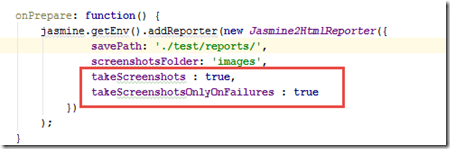
Now modify the test script so that test can fail. Now run the script and inspect that screenshot is created and for failed test cases.
Since default value of takeScreenshotsOnlyOnFailures option is false, so screenshot will be created by default.
Option 5 : Screenshot File name
We can fix the screenshot file name using fixedScreenshotName option to true. Name of the screenshot will be the test case name that we define after it clause.
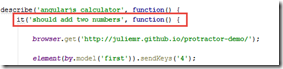
After running the script we see screenshot is created and the name of screenshot file is the test case name. In my case, this is 'should add two numbers'.
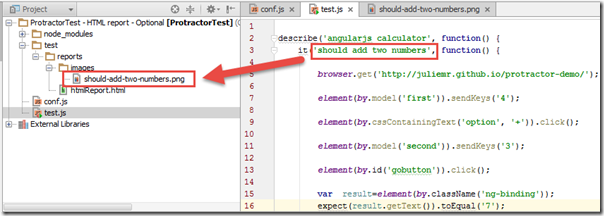
Note that default value of fixedScreenshotName option is false.
Option 6 : File prefix of Report file name
filePrefixWe can modify the report file name instead of using its default name htmlReport.html. We can use prefix with the file name. For this we have to add filePrefix option and mention the prefix name as value. In my case I use the “Addition’' as prefix.
After running the test we see html report is created with the prefix “Addition’'.
Option 7 : Consolidate and ConsolidateAll
If you have multiple test suites and you want to create separate reports for every test suite then these option will help you. We have a separate blog post coming after this post.
Step 3 : Now config.js file will look like the following,
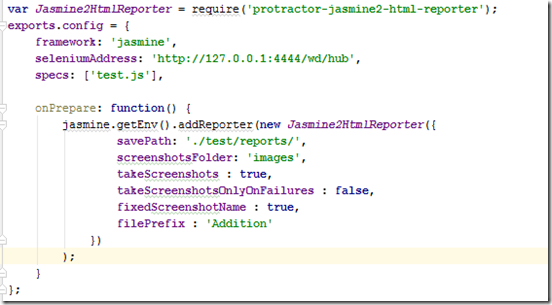
Step 4 : Now open terminal window and run selenium server.

Step 5 : Open another terminal window and run the script.
Step 6 : Note that script executes and report file and screenshot are created according to option 1 to option 6.
Now double click on the Addition.html file and see the result.
You can also open it through a browser.
Clicking on right side screenshot image you will see the screenshot in browser.
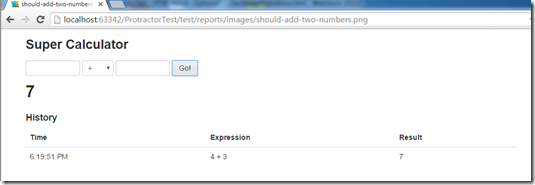
That’s all for now.
Happy end to end testing using Protractor!!!
Friday, June 10, 2016
Protractor : How to implement HTML report in Protractor
In our last post we have seen that how we can generate XML report using XML reporter. Here we see how we can implement Jasmine HTML reporters.
In this post we will use our sample projects that was built in our previous post.
Step 1 : Open the project.
Step 2 : Open Terminal window and install protractor-jasmine2-html-reporter package using the following command.
npm install protractor-jasmine2-html-reporter --save-dev
It installs the following packages
Step 3 : Now open config.js file and the following variable for Jasmine2HtmlReporter
var Jasmine2HtmlReporter = require('protractor-jasmine2-html-reporter');
Write the following script in onPrepare() function,
Here,
jasmine.getEnv().addReporter(): It create report after executing the script.
Jasmine2HtmlReporter() : It generate HTML report.
savePath: Report folder where report is generated. User can define his own path.
Step 4 : Now config.js file will look like the following,
Step 5 : Now open terminal window and run selenium server.
Step 6 : Open another terminal window and run the script.
Step 7 : Note that script executes and report file is created at ‘reports’ folder.
Now double click on the htmlReport.html file and see the result. You can also open it through a browser.
Clicking on right side screenshot image you will see the screenshot in browser.
That’s all for now.
In the next post we will see how we can generate HTML report with different options.
Happy end to end testing using Protractor!!!
Protractor : How to implement HTML report in Protractor
In this post we will use our sample projects that was built in our previous post.
Step 1 : Open the project.
Step 2 : Open Terminal window and install protractor-jasmine2-html-reporter package using the following command.
npm install protractor-jasmine2-html-reporter --save-dev
It installs the following packages
Step 3 : Now open config.js file and the following variable for Jasmine2HtmlReporter
var Jasmine2HtmlReporter = require('protractor-jasmine2-html-reporter');
Write the following script in onPrepare() function,Here,
jasmine.getEnv().addReporter(): It create report after executing the script.
Jasmine2HtmlReporter() : It generate HTML report.
savePath: Report folder where report is generated. User can define his own path.
Step 4 : Now config.js file will look like the following,
Step 5 : Now open terminal window and run selenium server.
Step 6 : Open another terminal window and run the script.
Step 7 : Note that script executes and report file is created at ‘reports’ folder.
Now double click on the htmlReport.html file and see the result. You can also open it through a browser.
Clicking on right side screenshot image you will see the screenshot in browser.
That’s all for now.
In the next post we will see how we can generate HTML report with different options.
Happy end to end testing using Protractor!!!
Cypress: How to handle browser-based authentication pop up dialog in Cypress
Five years ago I have written a blog on how to handle browser-based authentication for selenium webdriver. Now it is for cypress. Cypress...
-
Sometimes we need to refresh the web page to ensure that all the elements are loaded. In some of the cases we see that for the first attempt...